 Rumata
Test your app
Chapter 5 of 7
Test your application from a customer’s perspective before sharing it.
Test your application like a real user
Now that your application is built, it's time to make sure everything works as expected!
While Rumata's AI agent tests your application during development, we recommend trying it yourself to make sure it works the way you envisioned.
Walk through your application’s main features
- Open Preview Mode in your factory workspace.
- Choose an important task your users should be able to complete, such as signing up, submitting a form, or creating a new record.
- Go through the process just as a real user would, checking that buttons, forms, and navigation work correctly.
- If your application saves information, refresh the page or reopen the record to make sure your changes were saved.
- If your application connects to external services, verify that the expected action happened there too.
- If something doesn't work as expected, describe the issue to Rumata's AI agent and ask it to fix it. Then test the feature again.
If everything works as expected, you're ready to continue improving your app or prepare it for deployment.
Learn more: Build and improve your app
Check a smaller screen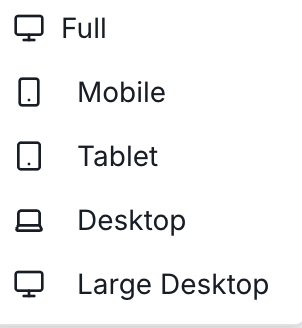
Make sure customers can use your application on a phone too.
Use the device-size control in the preview toolbar to check different screen sizes. It shows Full when the preview is at full width.
- Open the preview size control and choose Mobile.
- Repeat the same main task, including any menus, forms, or dialogs it requires.
- Check for clipped text, unreachable buttons, or horizontal scrolling, then return to Full.
Learn more: Preview sizes
Test user access and permissions
Make sure your application protects private information and gives each user access to the right features.
If your application includes user accounts, private pages, or different permission levels, it's important to test that everything works as expected.
Check who can access what
- Test without signing in: Open your application as a visitor. Make sure public pages are accessible and private features require users to sign in.
- Test different user roles: If your application has roles such as Admin, Team Member, or Customer, sign in with a test account for each role. Check that each user can access only the features and actions intended for them.
- Check private information: Create two separate test accounts and verify that users cannot view or modify each other's private information unless sharing is intentionally allowed.
- Test restricted actions: Try accessing a private page directly or performing an action your test account shouldn't be allowed to complete. Confirm that access is denied.
- Fix and retest: If something doesn't work as expected, describe the issue to Rumata's AI agent, request a fix, and test it again.
Report a problem and retest
Give Rumata a specific problem it can reproduce.
Use the chat beside the preview to report the issue.
- Send a bug report with the page, exact actions, actual result, and expected result.
- Wait for the fix to finish.
- Repeat the failed steps and the complete main task, recording the observed outcome.
Optional wording you can adapt:
On [page], I [actions taken]. I expected [result], but [actual result]. Please identify and fix the cause, then verify these steps and check that [related functionality] still works.Learn more: Troubleshooting